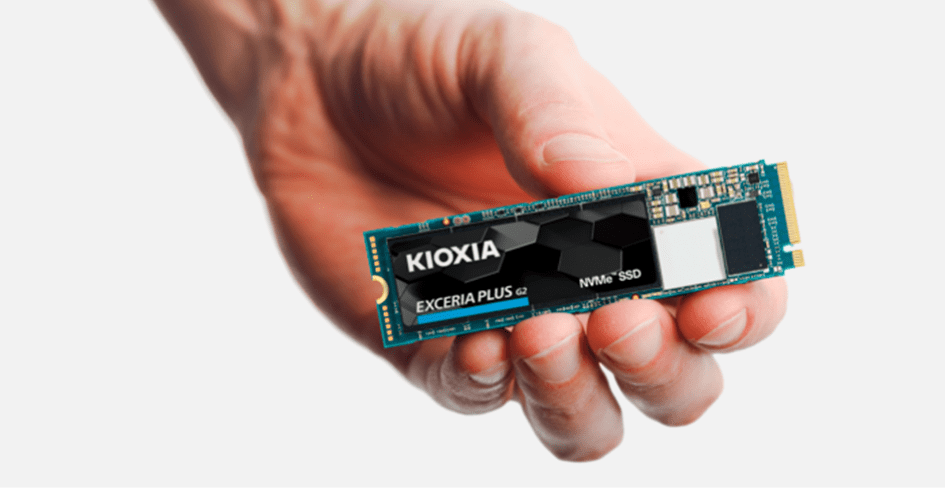
When windows 10 or 11 fast startup is enabled, the operating system will write data to your NVMe /Sata SSD drive every time you shut down your pc. This deducts write cycles and the life span of your NVMe and Sata SSD.
Windows 10
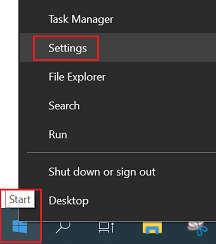
- Press Windows + X. From the menu, click Power Options, or open the Settings menu by clicking Start and Settings.
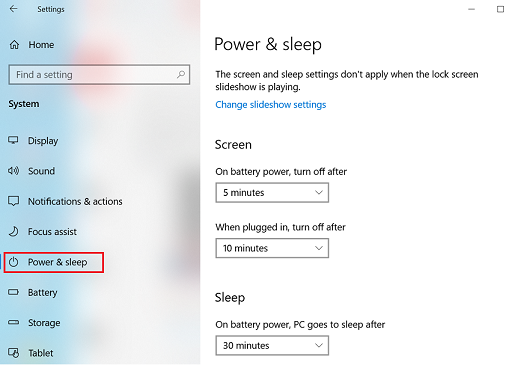
- In the Settings menu, go to System, then Power & sleep.
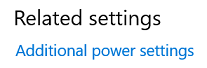
- Scroll down and select Additional power settings (Windows 10).
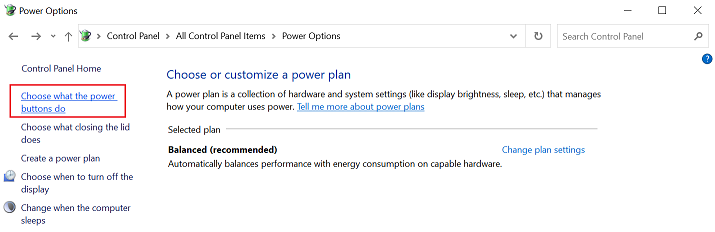
- The Power Options window will open. On the left side of the window, click Choose what the power buttons do.
- At the bottom of the window is a Shutdown settings section. In this section, there is an option labeled Turn on fast startup (recommended) (the option is missing?). To turn on fast startup, check the box next to this option. To turn off fast startup, deselect the box.
If the option is grayed out, scroll up and click Change settings that are currently unavailable. You may be prompted to confirm your choice by a User Account Control (UAC) pop-up window -> click Yes. You should now be able to adjust this setting.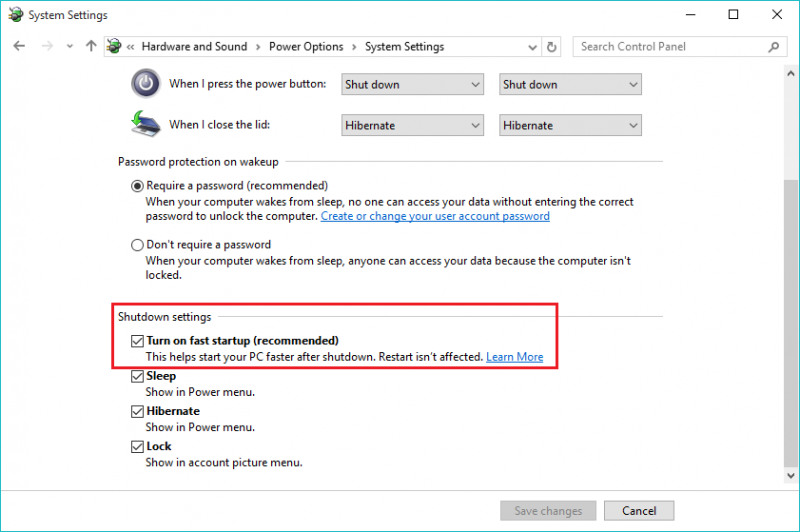
- Click Save changes and exit out of the window. To see how the changes have affected the startup time, shut down the computer (restart is not affected by fast startup), and power the system back on.
Windows 11
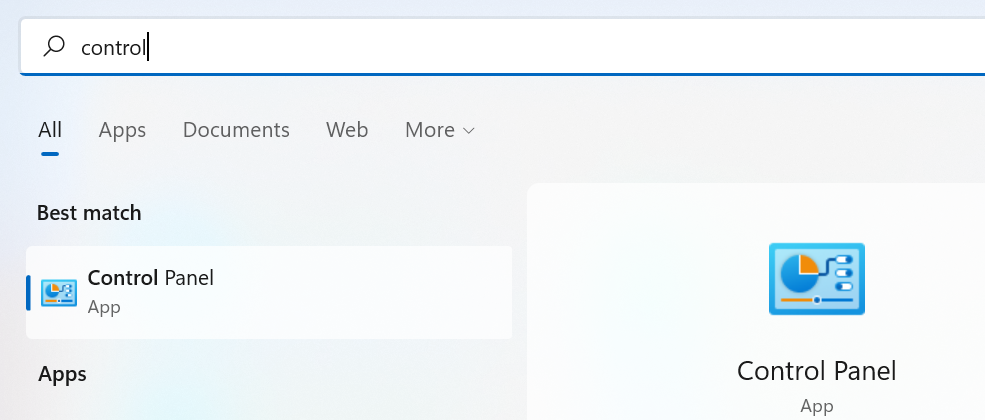
- Go to Start, search for and select Control Panel.
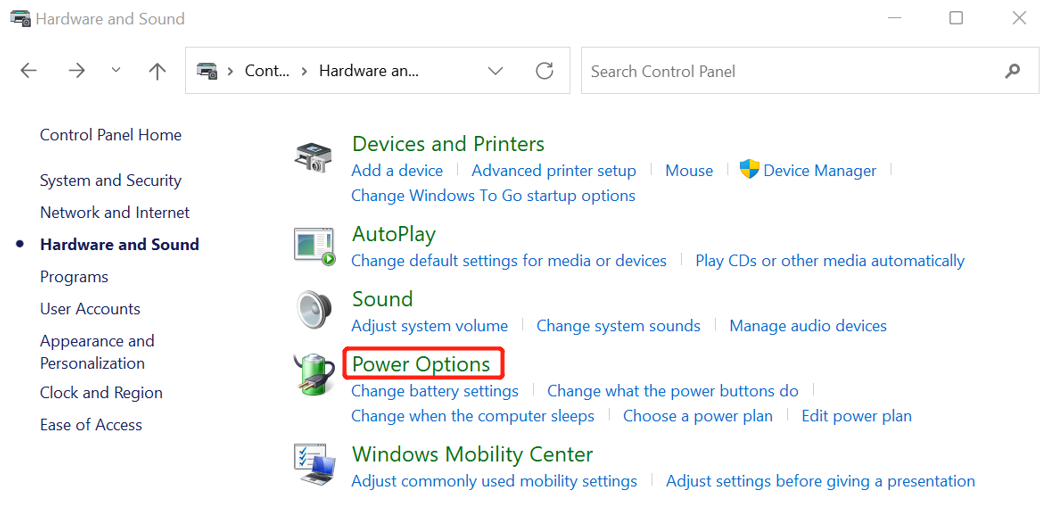
- In the Control Panel, click Hardware and Sound.
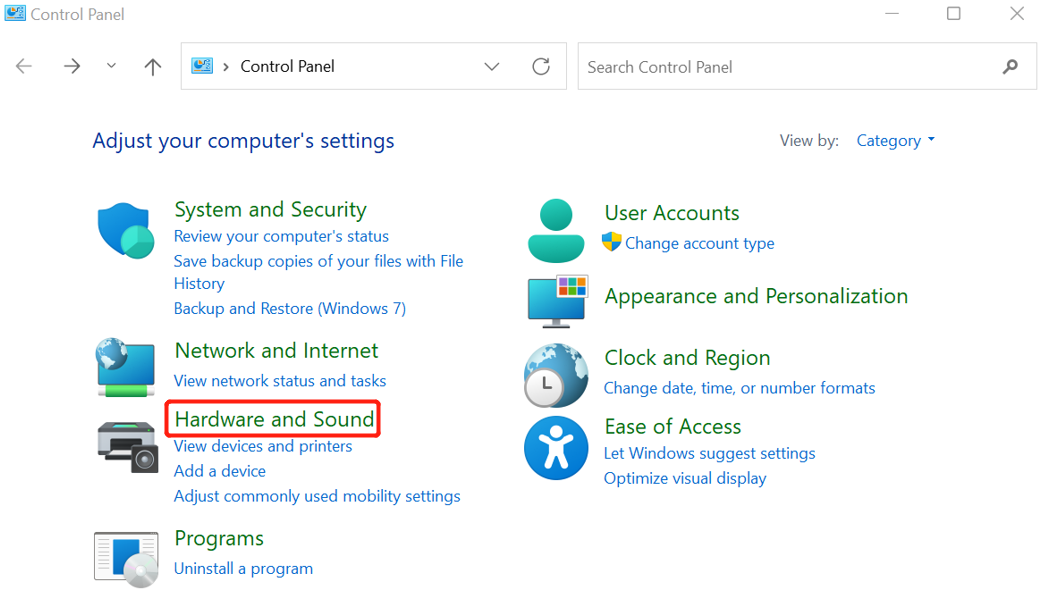
- Select Power Options.
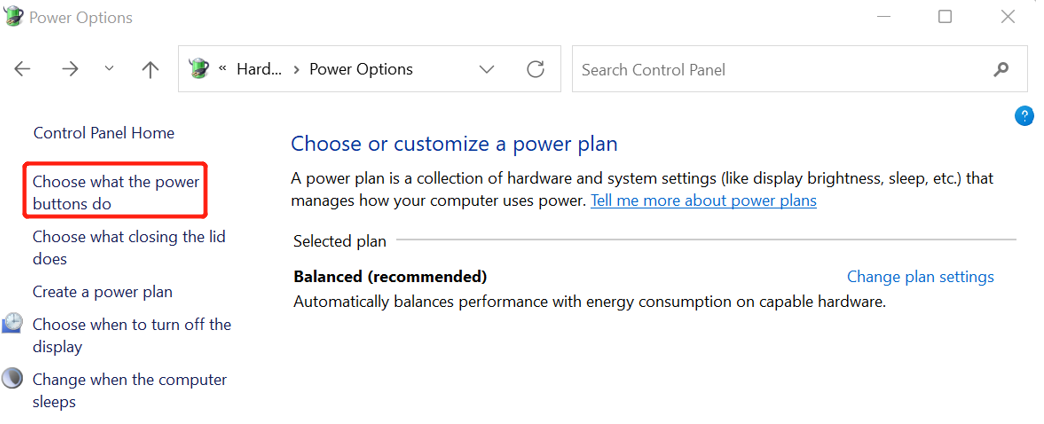
- On the left side of the window, click Choose what the power buttons do.
- At the bottom of the window is a Shutdown settings section. In this section, there is an option labeled Turn on fast startup (recommended) (the option is missing?). To turn on fast startup, check the box next to this option. To turn off fast startup, deselect the box.
If the option is grayed out, scroll up and click Change settings that are currently unavailable. You may be prompted to confirm your choice by a User Account Control (UAC) pop-up window -> click Yes. You should now be able to adjust this setting.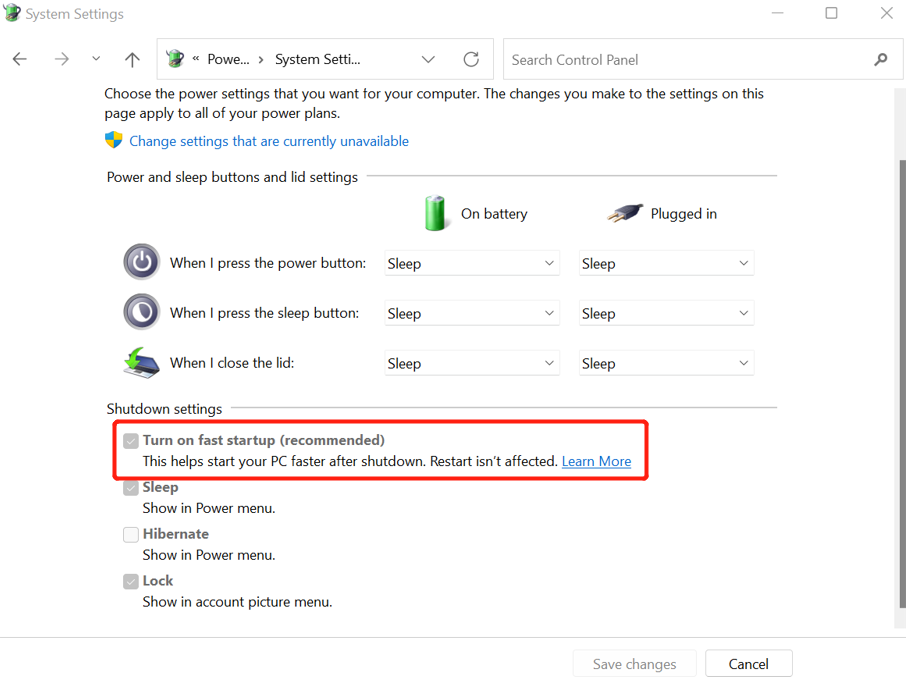
- Click Save changes and exit out of the window. To see how the changes have affected the startup time, shut down the computer (restart is not affected by fast startup), and power the system back on.